
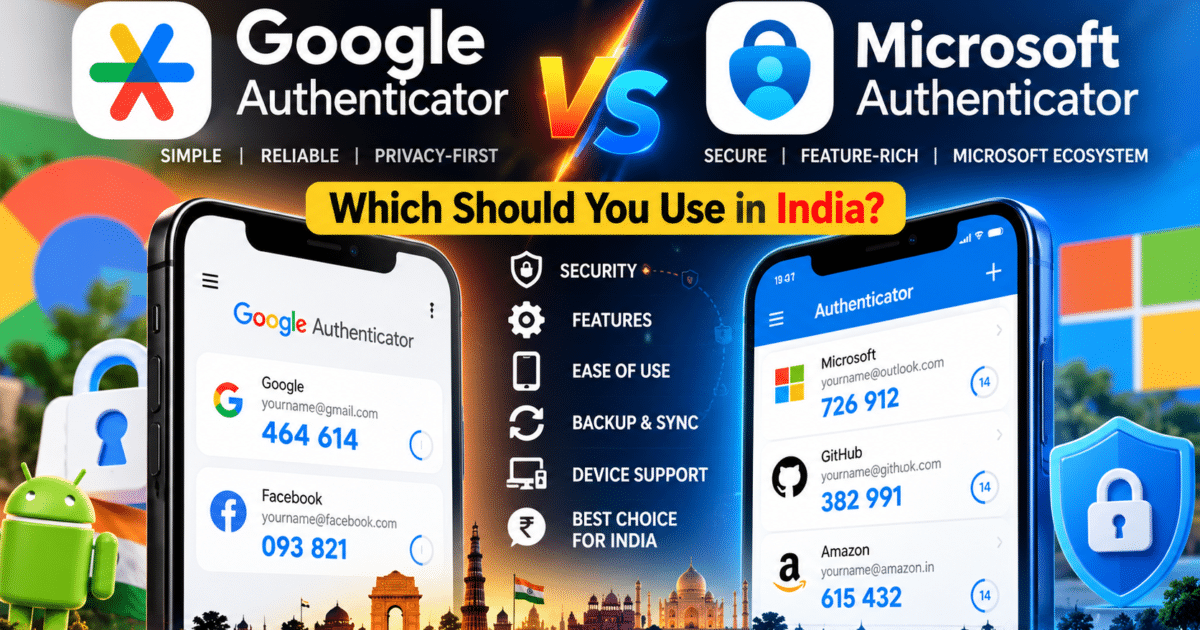
Google Authenticator vs Microsoft Authenticator is the first decision you face once you turn on two-factor authentication — maybe after a friend’s Instagram got hacked, or because your broker now insists on it. Both are free, both are recommended everywhere, and both generate the same six-digit codes. But they handle backups, phone changes and app security very differently — and those differences matter far more than the codes themselves. This guide compares them for Indian users and shows you how to set either one up properly.
Quick verdict: Pick Google Authenticator if you’re on Android, already rely on your Google account, and want the simplest way to move codes to a new phone (QR export or automatic sync). Pick Microsoft Authenticator if you use Outlook, Windows or Office at work, or if you want the app itself locked behind your fingerprint. Both are safe choices — the real mistake is using neither, or using one without a backup.
Table of Contents
First, What Can an Authenticator App Actually Protect in India?
Let’s be honest about one thing most “secure your bank with an authenticator” articles skip: most Indian bank and UPI apps don’t let you use an authenticator app at all. They rely on SMS OTPs, SIM/device binding and your MPIN or UPI PIN instead. So an authenticator app won’t replace the OTP your bank sends.
What it does protect is everything around your money: your Gmail or Outlook inbox (where bank alerts and password-reset links land), your Instagram, Facebook and X accounts, your Amazon account, and stock-broking logins — Zerodha, for example, supports time-based OTP (TOTP) from an external authenticator app for logging in to Kite. If a scammer takes over your email, they can reset passwords on almost everything else, so securing it is the single most useful step. For the bank and UPI side, our UPI new rules 2026 explainer and digital banking guide for beginners cover what your bank does on its end.
Google Authenticator vs Microsoft Authenticator: Feature Comparison
| Feature | Google Authenticator | Microsoft Authenticator |
|---|---|---|
| Price | Free | Free |
| Platforms | Android, iPhone | Android, iPhone |
| Code type | 6-digit TOTP codes | 6-digit TOTP codes + push approvals for Microsoft accounts |
| Cloud backup | Syncs to your Google account (optional) | Cloud Backup: iCloud on iPhone; personal Microsoft account on Android [VERIFY: users report an in-app notice that Android backup moves to Google One backup from January 2027] |
| Use without an account | Yes | Codes work without signing in, but backup needs an account |
| Move codes to a new phone | Auto-sync, or QR export (Transfer codes) | Restore from Cloud Backup [VERIFY: confirm no QR export option exists] |
| App lock (fingerprint/face) | [VERIFY: Privacy screen on iPhone; check current Android option] | Yes, App Lock |
| Password manager | No (uses Google Password Manager separately) | Removed in 2025 (moved to Edge) |
| Best for | Android users, Google-centric setup | Microsoft 365/work accounts, shared phones |
Backup and Changing Phones: The Difference That Matters Most
This is where most people get burned. If your phone is lost, stolen or factory-reset and your codes weren’t backed up, you can be locked out of every account protected by them — and recovering some accounts without codes is slow and painful.
Google Authenticator gives you two ways out. If you sign in with your Google account in the app, your codes sync to that account automatically and reappear when you sign in on a new phone. Google says the codes are encrypted in transit and at rest (see Google’s official Authenticator help page). If you’d rather not store them in the cloud, you can tap “Use without an account” and move codes manually using Transfer codes → Export codes, which shows a QR code you scan from the new phone.
Microsoft Authenticator relies on its Cloud Backup toggle (Microsoft explains it in its official backup guide). On iPhone, the backup lives in your iCloud account. On Android, it currently uses a personal Microsoft account as the recovery account — and a work account can’t be used for this. Unlike Google’s app, it doesn’t appear to offer a QR export [VERIFY: confirm in current app], so if you skip the backup, you’ll have to re-add every account by hand on a new phone.
Bottom line: whichever app you choose, turn backup on the day you install it — or, for Google Authenticator without an account, export your codes before you change or reset your phone.
App Security and Extra Features
Microsoft Authenticator has App Lock, which asks for your phone’s fingerprint, face or PIN before showing codes. That matters in India, where phones are often shared with family or handed over at repair shops. If you use a Microsoft work or school account, it also does push approvals — you tap “Approve” and type a matching number instead of copying a code — and it can sign you in to a personal Microsoft account without a password.
Google Authenticator is deliberately simpler: open, read the code, done. Its standout feature is the Google account sync described above. Google’s own sign-in prompts (“Is it you trying to sign in?”) come through your phone’s Google account and the Google or Gmail app, not through Authenticator.
One change to know about: Microsoft removed password saving and autofill from Authenticator in 2025 and moved those features to the Edge browser. If you used it as a password manager, it now only handles codes and sign-in approvals.
How to Set Up Either App (Step by Step)
The setup flow is nearly identical for both apps and works on any site that supports authenticator-app 2FA:
- Install Google Authenticator or Microsoft Authenticator from the Play Store or App Store — check the publisher is Google LLC or Microsoft Corporation, since lookalike apps exist.
- Microsoft only: open the app and turn on Cloud Backup in Settings. Google: sign in with your Google account when prompted, or choose “Use without an account”.
- On the website you want to protect (for example, your Instagram or Zerodha security settings), choose “Authenticator app” as your two-factor method. The site will show a QR code.
- In the authenticator app, tap the + button, choose to scan a QR code, and point your camera at the screen. In Microsoft Authenticator, pick “Other account” for non-Microsoft sites.
- Type the six-digit code from the app back into the website to confirm.
- Save the backup or recovery codes the website gives you — write them down or store them somewhere offline. They’re your way back in if you lose your phone.
Never share an authenticator code with anyone who calls or messages you, even if they claim to be from your bank or a delivery company. No genuine service asks for it. If you do fall for a scam, our digital fraud compensation guide explains how to report it and claim money back.
Which One Should You Pick?
The Google Authenticator vs Microsoft Authenticator choice comes down to which ecosystem you already live in. Use this checklist:
Pick Google Authenticator if:
- You’re on Android and already use a Google account for everything
- You want the easiest phone switch — either automatic sync or a QR export
- You want a no-frills app that only does codes
- You don’t want a separate Microsoft account just for backup
Pick Microsoft Authenticator if:
- Your office uses Microsoft 365, Outlook or Teams — your IT team may require it anyway
- You want the app locked behind your fingerprint or face
- You like tapping “Approve” instead of typing codes for Microsoft sign-ins
- You’re on iPhone and prefer your backup in iCloud
You can also use both: Microsoft Authenticator for your work account, Google Authenticator for everything else. The codes follow an open standard (TOTP), so any site that “works with Google Authenticator” also works with Microsoft’s app.
Frequently Asked Questions
Is Google Authenticator safer than Microsoft Authenticator?
Neither is meaningfully safer at generating codes — both use the same TOTP standard. The practical differences are backup and app lock: Microsoft Authenticator can require your fingerprint to open, while Google Authenticator makes moving codes to a new phone easier.
Can I use Google Authenticator or Microsoft Authenticator for SBI, HDFC or other Indian bank apps?
Generally, no. Most Indian banks use SMS OTPs, device binding and MPINs rather than authenticator apps. Use an authenticator to secure your email and social media instead, because those are often how scammers reset other passwords.
What happens if I lose my phone with Google Authenticator?
If you signed in with your Google account in the app, install Authenticator on your new phone, sign in, and your codes come back automatically. If you used it without an account and never exported your codes, you’ll need each website’s backup codes or account recovery process.
Does Microsoft Authenticator still save passwords?
No. Microsoft stopped password saving and autofill in Authenticator in 2025. Saved passwords moved to the Microsoft Edge browser, and the app now focuses on verification codes and sign-in approvals.
Can I move my codes from Google Authenticator to Microsoft Authenticator?
There’s no direct one-tap transfer between the two apps. The reliable way is to turn off 2FA on each account and set it up again in the new app, or add the new app as an extra authenticator where the site allows it, then remove the old one.
Final Verdict
So who wins Google Authenticator vs Microsoft Authenticator? For most Indian Android users, Google Authenticator is the easier starting point: free, simple, and painless when you change phones. Microsoft Authenticator is the better choice if you work in a Microsoft 365 office or want stronger protection on a phone that other people sometimes use. Either way, the app matters far less than two habits: turn on backup, and never read a code out to anyone. If you’re also tightening up your daily payments, our UPI Lite vs UPI 123Pay comparison is a good next read.